Service Release 21.1.1
What's New
New SOSI Template
A new SOSI template is now available for FKB10_Grønnstruktur.
Startup Without the Last Project
Gemini Terrain no longer opens the most recently used project automatically at startup. This gives a faster start, and avoids unnecessary downloads and synchronization from the cloud.
The Recently used projects list is still shown as before, so you can open a project with a single click.
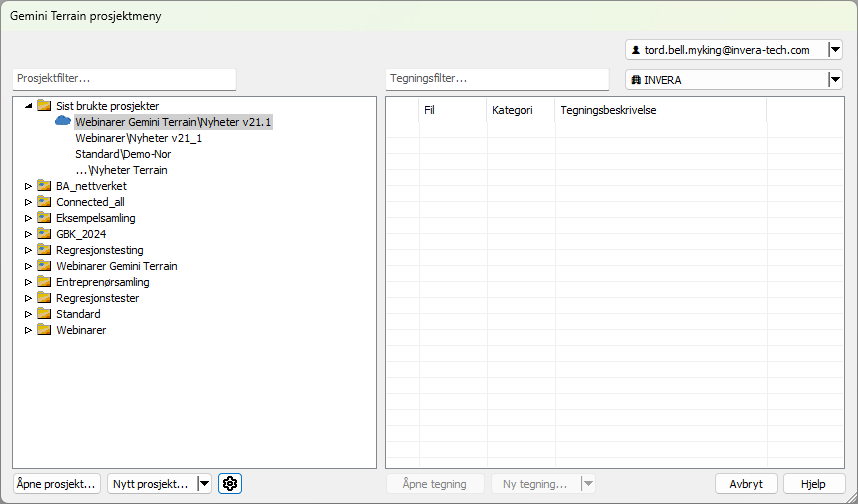
The project menu at startup
Optimized Profile Generation
Generating terrain sections is now faster. When creating longitudinal and cross-section profiles, the program calculates only the required terrain layers and the layers they depend on, instead of all layers in the model. The improvement is especially noticeable in models with many layers.
Optimized Quick Section Generation
Inserted IFC files could slow down the generation of quick sections because the program generated clipping geometry for all objects in the drawing. This is now optimized: the program checks whether an object's extent lies outside the quick section and, if so, skips it.
Gemini QuantiFlow: Contract Post Number in File Names for Generated Drawings
When generating documentation for registered quantities, you can now choose to include the contract post number in the name of the generated drawings.
The setting is located under Document Quantities... - Generate - Drawing Settings... by adding CONTRACTPOSTNUMBER as part of the drawing name. Any contract prefixes and additional prefixes are included in the name. If you generate documentation for several quantities at the same time, all contract post numbers are added to the file name, sorted alphabetically and separated by -.
Gemini QuantiFlow: Open Attachments in Document Quantities
Fixed an issue in the Document Quantities dialog where Preview did nothing for attachments uploaded in a previous session.
The button is now called Open. For attachments that have not been uploaded, it works as before. For attachments that have already been uploaded, the file is downloaded from the cloud and opened. A wait cursor is shown while the download is in progress. If you have selected more than five attachments, you must confirm before they are opened.
Gemini QuantiFlow: Change File Name
In the Document Quantities dialog, you can now change the name of an attachment before it is uploaded. This is useful for generated drawings and quantity reports, which otherwise get an automatically generated name.
Click the file name twice in the list of attachments and enter a new name. If the attachment is linked to several quantities, the name is changed for all of them. Once the attachment has been uploaded, the name can no longer be changed.
Gemini QuantiFlow: File Type Shown in the Attachment List
In the Document Quantities dialog, the file name is now shown with its file extension in the list of attachments, for example .pdf or .xlsx. This makes it easy to see the file type of each attachment. The file extension cannot be changed when you rename the file.
Gemini QuantiFlow: Profile Interval for Generated Cross-Sections
When you generate cross-sections as documentation of quantities, the profile interval from the presentation drawing is now used. This gives fewer profiles where the cross-sections are close together.
If the interval is 0, one section is generated for each cross-section where the mass type is present, as before. If the interval is greater than 0, sections are generated at that interval, but only where the mass type is present.
Duplicated Files in Cloud Projects Get a New GUID
If you copy a file in Windows Explorer, the copy and the original end up with the same GUID. You no longer have to fix this manually: when you open the copy for editing, you are notified that the file is given a new GUID. The new GUID is saved when you close the file and is uploaded together with your changes. References in both files are kept.
This currently applies only to files without registered quantities.
Gemini QuantiFlow: Remove Uploaded Attachments
In the Document Quantities dialog, you can now use Remove on attachments that have already been uploaded. You are asked whether you want to remove the file, and you are notified when the attachment has been removed. This lets you correct mistakes directly in Gemini Terrain.
This applies to quantities that have not been approved. Attachments cannot be removed from approved quantities.
Bug Fixes
Split/Delete Objects Against Line/Polygon
Fixed an issue where the function did not split lines correctly against circles.
NVDB
Fixed an issue where the user was not redirected to the website to fetch a new token when the previous one had expired.
Extract Shortest Line from Objects
Fixed an issue where the function did not work as expected.
Cross-Section Drawing
Fixed an issue where the symbol for vertical curvature was not drawn in the correct position.
Gemini QuantiFlow: Uploading Gemini Files as Attachments
Fixed an issue in the Document Quantities dialog where Gemini files, such as SFI files and application layer files, could not be added as attachments to quantities.
General
Fixed several other minor issues and reported crashes.