Define annotations
Use this page to define annotations for cross sections. Annotations are defined following the same principles as for mass types, and it is often most practical to create them in the windows for longitudinal and cross-section editing.

The Annotation tab in the horizontal list field in the profile editing windows.
The annotations are stored in the SFI model in the same way as mass types. This means you can also turn annotations on and off in presentation drawings, in the same way as layers and mass types.
The annotation function is flexible and can be used for many types of tasks. It comes with a template you can use as a starting point. Select Use template... in the SFI properties... dialog, and select Påskrifter.sfi from the Sys folder.
Right-click in the horizontal list field for annotations to open the New annotation... option.
Overview of annotation methods
The table below shows which annotation methods can be used in longitudinal sections and cross sections.
| Annotation | Longitudinal section | Cross section |
|---|---|---|
| 3D lines in layer | x | |
| Difference between layers | x | x |
| Extra lines | x | |
| Surfaces in layer | x | |
| Heights in layer | x | x |
| Layer offset | x | |
| Minimum difference between layers | x | x |
| Points in application layer | x | x |
| Point clouds in application layer | x | x |
| Tunnel contour | x | |
| Tunnel contour angles | x | |
| VA line definition data | x |
An annotation defined in the cross-section editing window applies to all profiles where the layers are defined.
Examples of annotation methods
Below you will find examples of using various annotation methods.
Surfaces in layer
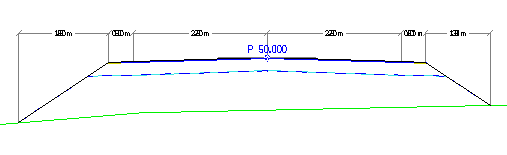
Example of annotation for surfaces in layer.
- Annotation method: Surfaces in layer
- Layer: Teo. 0: Surface
- Show values: Width
- Placement: Along horizontal line
- Offset: 5
Note
You can check Rotate text 90 degrees if there is not enough space.
Tunnel contour
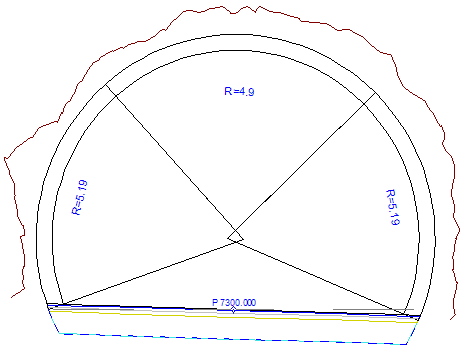
Example of annotation for tunnel contour.
- Annotation method: Tunnel contour
- Layer: 31: Tunnel blasting profile
Difference between layers, example 1
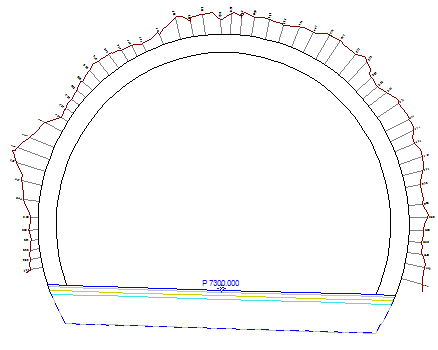
Example of annotation for difference between layers.
- Annotation method: Difference between layers
- Layer: Teo. 31: Tunnel blasting profile
- Difference layer: Teo. 31: Tunnel blasting profile
- Difference layer 2: Fys. 90: Scanned tunnel
- Targeting method: Line with annotation in extension
- Approx. density: 0.50
- Maximum difference: 2.00
- Use points in layer: On
- Use points in difference layer: On
- Remove nearby points: On
- Prioritize points with min. deviation: On
When you use the annotation method "Difference between layers" in cross sections, you can specify an offset for the annotation. This makes it possible to:
- avoid overlap between different annotations
- improve readability in the cross section
- adjust the placement of the annotation as needed
The offset function gives you better control over how differences between layers are displayed visually.
Difference between layers, example 2
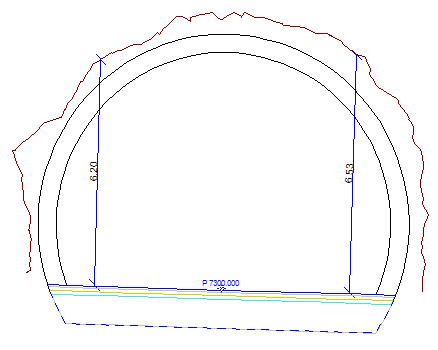
Example of annotation for difference between surface and scanned tunnel.
- Annotation method: Difference between layers
- Layer: Teo. 0: Surface
- Surface selection: (-2.01),(2.01)
- Difference layer: Fys. 90: Scanned tunnel
- Targeting method: Line with annotation in extension
- Approx. density: 0.50
- Max. difference: 2.00
- Use points in layer: On
Minimum difference between layers
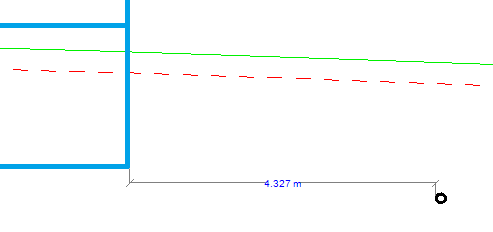
Example of minimum difference between layers.
- Annotation method: Min. difference between layers
- Layer: Av.snitt 300: Buildings
- Difference layer: Av.snitt 451: Stormwater
- Placement: Along horizontal line
- Distance from CL: 0
Heights in layer
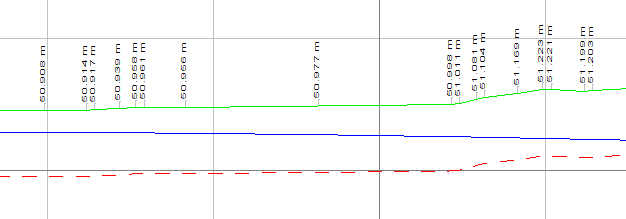
Example of annotation for heights in layer.
- Annotation method: Heights in layer
- Layer: 1: Terrain form
- Approx. density: 5
- Use points in layer: On
- Placement: In the section
- Offset: 1
Extra lines
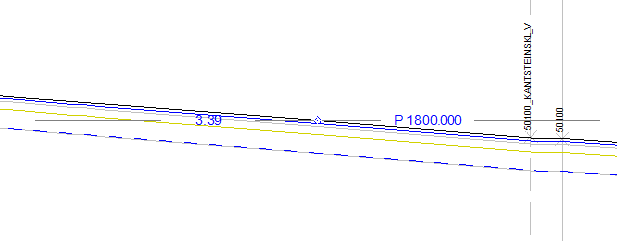
Example of annotation for extra lines.
- Annotation method: Extra lines
- Offset: 1
If you check Draw offset coordinates under Options for extra and 3D lines, the offset between the centerline and the selected extra line(s) from the corresponding drop-down menu is calculated.
Points in application layer
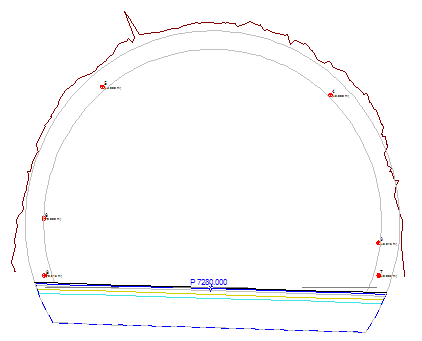
Example of annotation for points in application layer.
- Annotation method: Points in application layer
- Layer: 90: Tunnel
- Selection depth: 0.5 (0.25 in front of and behind the profile number)
Note
The annotation shows how far away from the actual section the point is located.
Point clouds in application layer
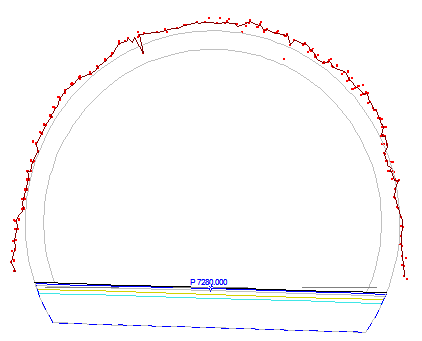
Example of annotation for point clouds in application layer.
- Annotation method: Point clouds in application layer
- Layer: 90: Tunnel
- Selection depth: 0.5 (0.25 in front of and behind the profile number)
Layer offset
This method can be used, for example, to show the terrain alongside the centerline.
- Annotation method: Layer offset
- Layer: Fys. 1: Terrain surface
- Side distance: 5 (5 meters to the right of the centerline)
Note
Cross sections must be generated along the line, as the annotation retrieves heights from these.