Editing layers in profiles
In Gemini Terrain, you can edit physical layers and advanced section layers in the same way you edit lines in application layers. Editing can be done both through the properties dialog and by using grips.
Editing layers via the properties dialog
Double-click on the layer to open the properties dialog.
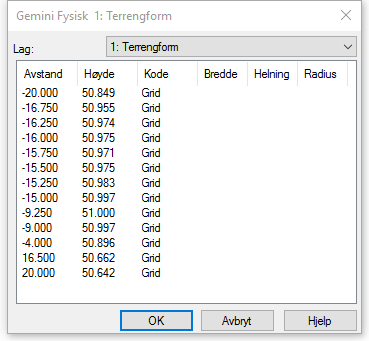
Properties dialog for editing layers in profiles.
Editing layers with right mouse click
When you point in the cross-section, you get access to these functions via the right mouse button (context menu):
- Exit and save
- Insert point
- Follow the layer
- Sort clockwise around a given point
- Sort counter-clockwise around a given point
- Close contour
- Insert point with undefined height
- Set height undefined
- Move point
- Add line length
- Helper geometry
- Move dialog to pointer position
Tip
The keyboard shortcuts are displayed to the right in the menu. It can be useful to learn these to work more efficiently and avoid many right-clicks. The concepts for helper options for dynamic line, snapping, and guide lines (intersection calculations) are also useful when editing data in the profile.
Snap to grid and centerline point in cross sections
When you digitize geometry in cross sections, you can snap directly to the grid and to the centerline’s 0-point. This makes it easier to place geometry and create guide lines accurately in the cross section.
Creating new physical layers
You can create new physical layers directly from longitudinal and cross-section editing. Select Add/Create... in the horizontal list field for layer names.
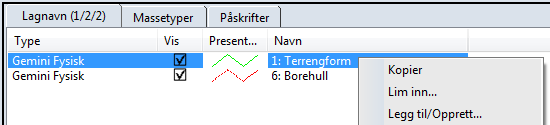
Function for creating a new layer in a profile.
The relationship between manually edited profiles and source data
Warning
When you make manual edits in the profile, you must be aware that these are independent of the model they were generated from. There is no connection between the base data in the application layer and the generated profiles in the SFI model. If you generate profiles again, any manual edits will be overwritten.
To avoid unintentional overwriting of profile edits, you can lock profiles for manual SFI models. Locked profiles are not affected by the profile generator. The same applies to the building of theoretical layers.
Select Lock on via the right mouse button in the list of profiles.
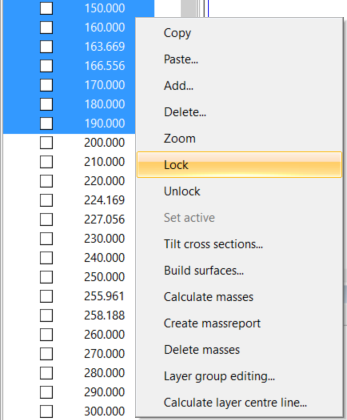
Locking a profile with right-click.
Note
This functionality is only active for SFI models with manual calculation method. In road projects with automatic calculation method, the profile generator automatically rebuilds the layers.
Group editing
Use Group editing... when you want to perform an operation on multiple profiles and layers in the same workflow.
Editing theoretical layers
So far, only physical layers have been discussed. When the contractor documents roads, ditches, and tunnels, they also build theoretical layers in the profile. Theoretical layers can be edited in the same way as physical layers. Typical contractor tasks are described in more detail in a separate section.