Edit Annotation
Use this dialog to define annotations for long sections and cross-sections.
Where do I find the dialog?
On the toolbox, select SFI Properties... - Annotations - Edit.
Using the Dialog
The dialog offers several different annotation methods. Available methods depend on whether you are in longitudinal section or cross-section view. The settings also vary depending on the selected method.
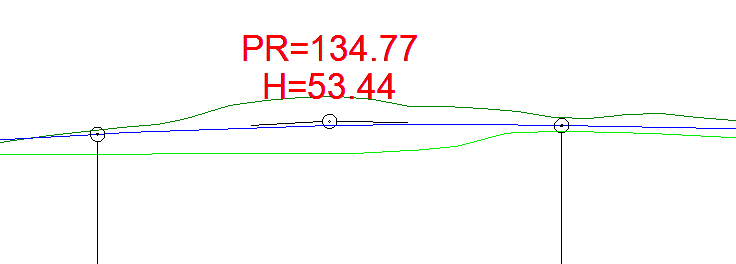
Below is an example of using the Layer offset annotation in long section view. With this rule, you can see how the terrain changes across the longitudinal direction during long section editing. Note that this annotation retrieves elevations from the cross-sections in the model, so the resolution may be coarser than the generated long section.
Procedure
- Select New annotation... in the horizontal annotation list field.
- Enter a description for the annotation (user-defined annotations get IDs from 100 and up).
- Select the annotation method Layer offset.
- Select Layer, for example physical layer 01.
- Select Distance (offset from the centerline).
- Click OK.
Try it yourself!
We recommend that you experiment with the different options in the dialog. Annotations can easily be removed from the screen and do no harm.
You can read more about several of the annotation methods in the user documentation.
Real-time preview of annotations in cross sections
When you edit annotations for a cross section, the view is updated automatically while you make changes in the dialog.
You can therefore immediately see how adjustments to annotations affect the cross section, without having to close the dialog first.
Benefits
- Changes are shown directly in the cross section.
- No need to close and reopen the dialog multiple times.
- Faster and easier to fine-tune annotations.
The function provides a more efficient workflow when adjusting annotations in cross sections.