Connecting to Gemini Connected
Gemini Connected retrieves its users from the company's user directory in Microsoft Entra ID. The connection is set up once, by one person in the company. In larger organisations, this is often an IT department task, as they may have restricted who is allowed to approve such connections.
Permissions
Gemini Connected requires only read access to basic information about the logged-in user.
Extended read access to the user directory is optional. With it, you can select employees directly from the list in Entra ID instead of registering them manually.
Does Your Organisation Have a User Directory?
Entra ID is the identity service behind Microsoft's cloud services. If your organisation uses Microsoft 365, Intune, or Dynamics CRM Online, you already have an Entra ID directory and can activate Gemini Connected directly.
The directory was created automatically the first time your organisation registered for one of these services, based on the company name and domain name. The same directory is used for sign-in across all subsequent services — both from Microsoft and other providers — so existing user accounts, policies, and any synchronisation with a local directory are reused.
If your organisation does not use any of the services above, the directory must be created. See Creating an Entra ID Directory.
Tip
Use the same administrator account when registering new Microsoft services. This links them all to the same directory.
Managing Directory Data
Users and groups are managed from the Entra portal, Microsoft 365 Admin Center, or the Intune portal. From here you can also manage which services your organisation subscribes to and set up integration with an on-premises directory service.
All three portals read from and write to the same Entra ID instance. Changes made in one portal therefore apply across all of them.
Creating a Free Entra ID Directory
The directory is free. Microsoft offers a separately licensed Entra ID Premium tier with additional features such as custom branding and self-service password reset, but these are not required by Gemini Connected.
Registering through one of the following services creates the directory:
Tip
Unless your organisation also needs Microsoft 365 or Intune, Microsoft Entra ID is the simplest option.
During registration you choose a domain name, which must be approved before you can continue. Microsoft also asks for card details to verify the organisation; your card will not be charged.
Note
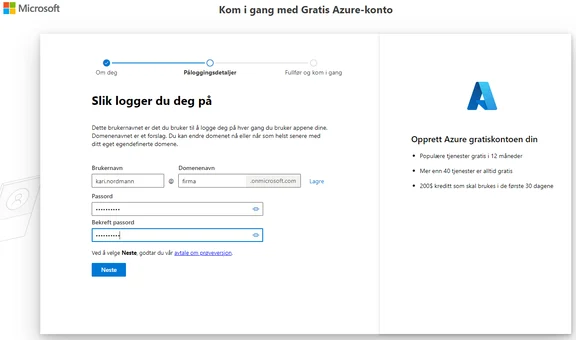
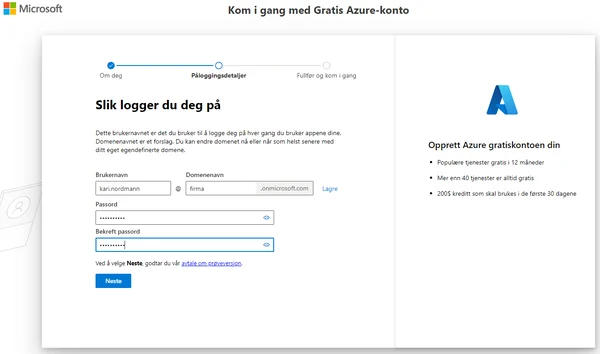
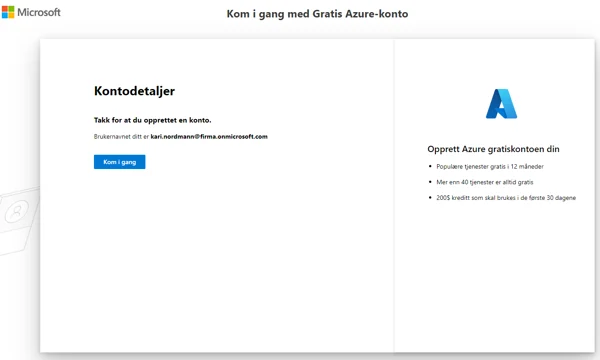
Your login will be «username»@«domainname».onmicrosoft.com. In the example below: kari.nordmann@firma.onmicrosoft.com.
Procedure
- Open the wizard at signup.microsoft.com.
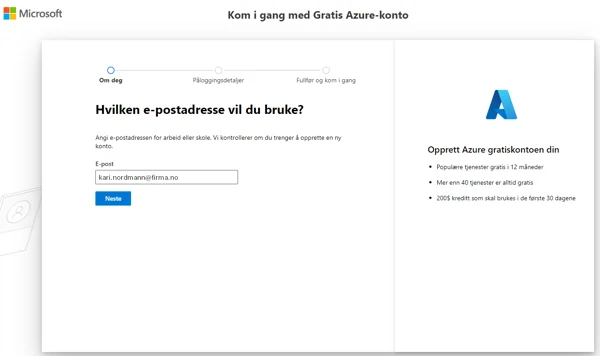
- Enter your email address, click Next and select Set up account.
- Fill in your personal details and provide a phone number for the verification code.
- Choose a username, domain name and password, and click Next. This will be your login for Gemini Connected.
- Click Get started when the account has been created.
- Accept the agreement, click Next, enter your card details and click Sign up.
The directory is now ready and employees can be registered in it. Then return to the email you received from us to register your organisation in Gemini Connected.
Creating an organisational account (video) shows the full procedure.