Setting Up NVDB in Gemini Connected
Background
In development projects, agreements are made for delivering data to NVDB and FKB. This applies to roads that are the responsibility of both the Norwegian Public Roads Administration and Nye Veier.
The data manager creates the contract in Datafangst. Furthermore, the data manager will configure the contract, assign a name, define an object list, and add users who should have access to it. External users of Datafangst need to be invited to access a contract, which is usually notified via email.
Connecting to an NVDB Contract
When we are registered users in Datafangst and have access to one or more contracts, we can connect to a contract in Gemini Connected.
Procedure
- Select Project Administration in the left menu and then NVDB.
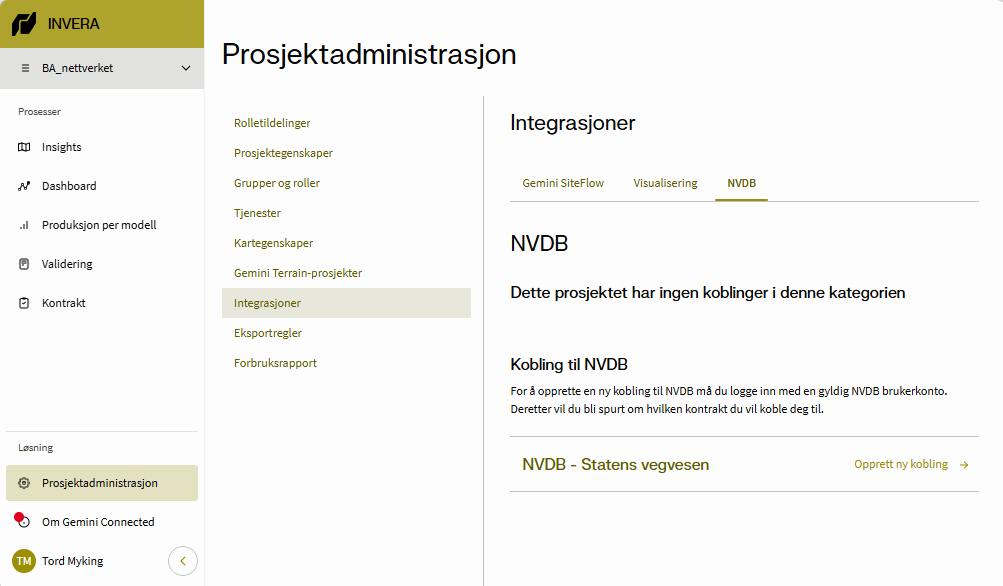
Select NVDB in Gemini Connected
-
Click Create new connection.
-
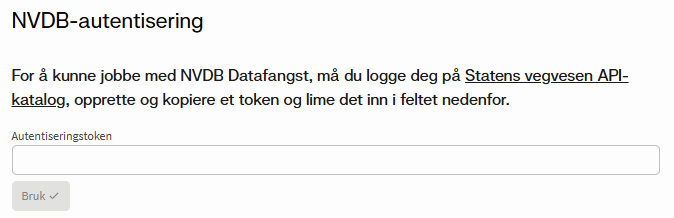
The first time, we must retrieve and paste the authentication token.
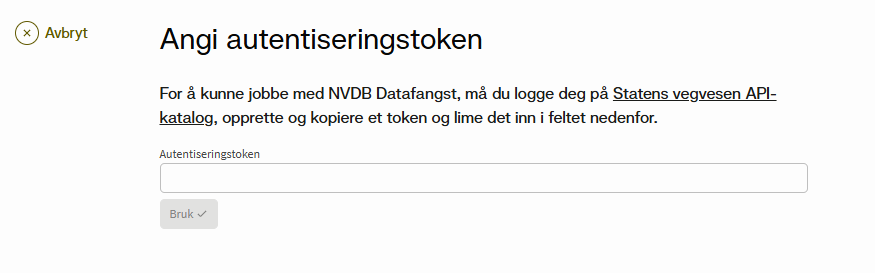
Dialog for entering the authentication token
How we retrieve this token as an external user is described below.
- Select the NVDB contract, and Gemini Connected is connected to NVDB.
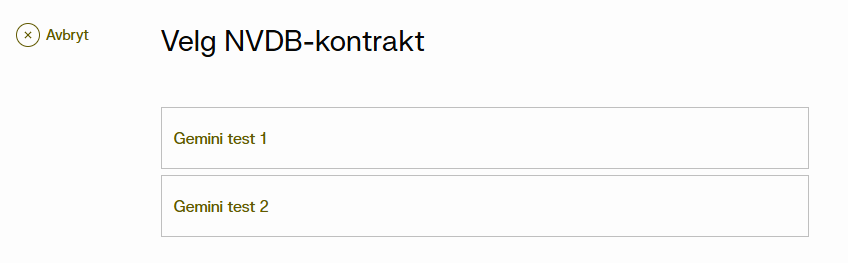
Selection of NVDB contract for the project
Norwegian Public Roads Administration API Catalog
For External Users
The authentication token is retrieved from the Norwegian Public Roads Administration's API catalog.
Procedure
- Open the Norwegian Public Roads Administration API catalog and click Log in for external users.
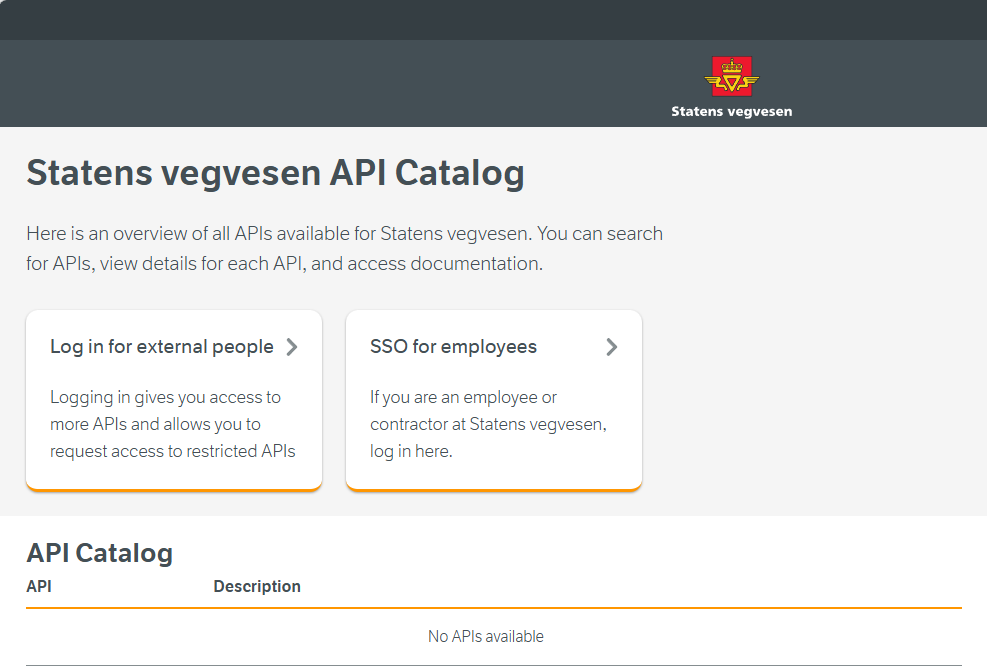
The login page in the Norwegian Public Roads Administration API catalog
- Log in with your preferred method.
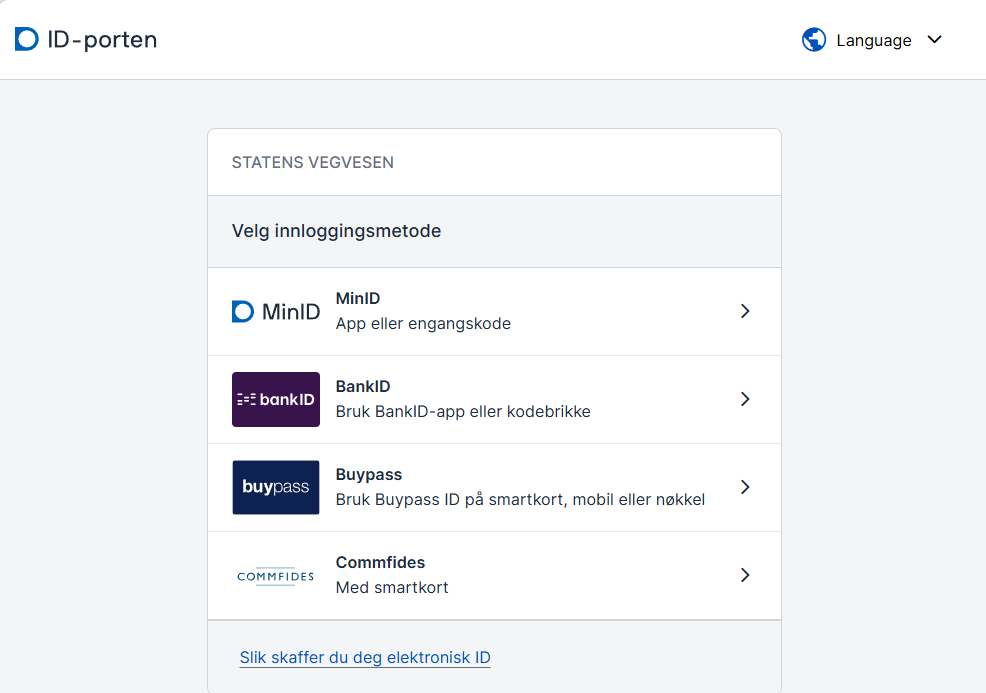
Login via ID-porten
- Click Select for Datafangst 2.0 API.
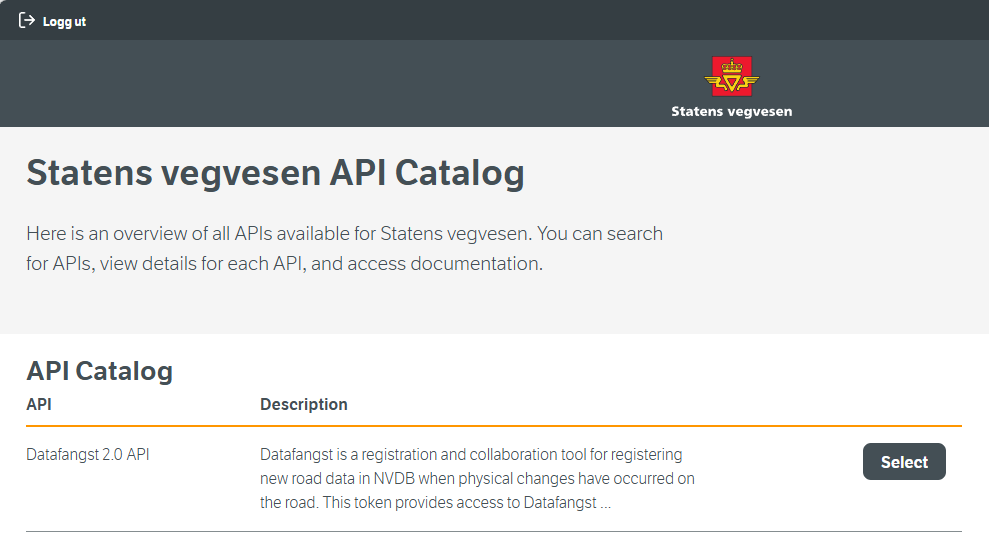
The API catalog after logging in
- Accept the agreement and click Get token.
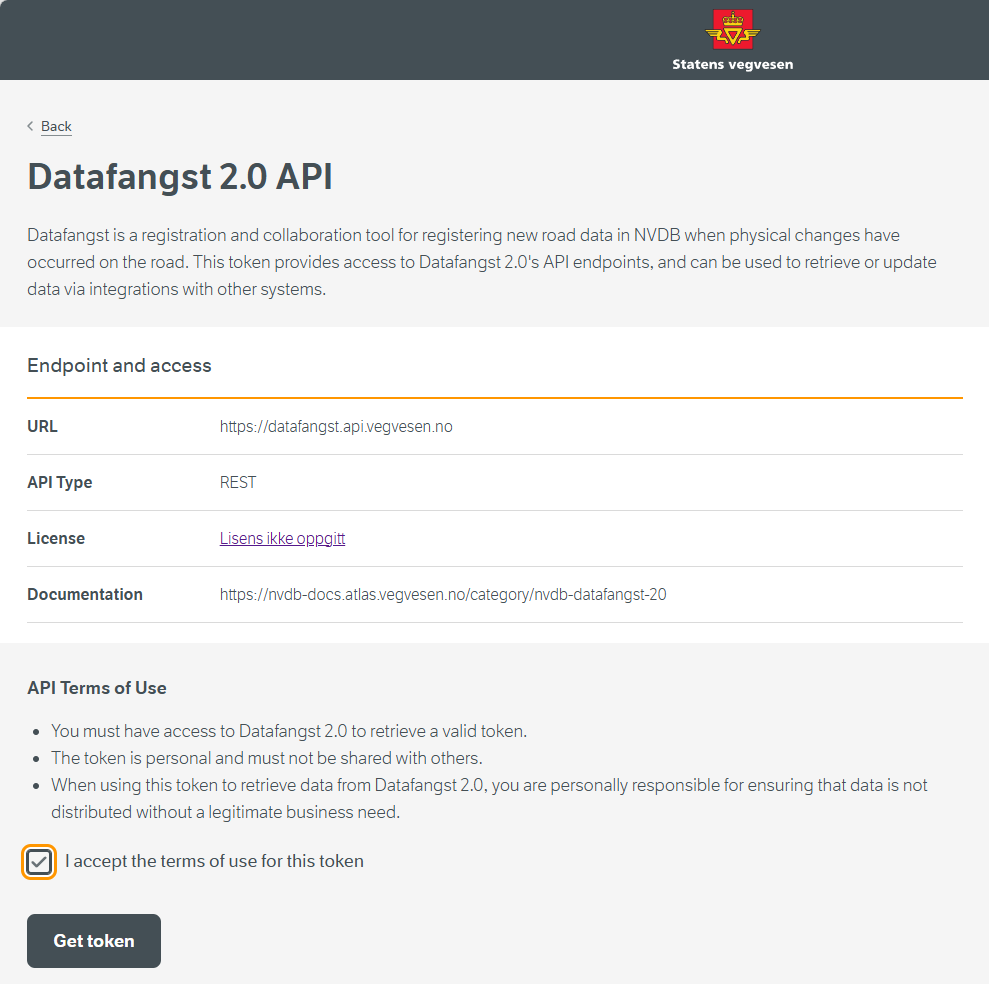
Dialog for retrieving the authentication token
- Click Copy token to clipboard to copy the authentication token.
Missing or Expired Token
The authentication token is valid for 30 days. When it has expired, you receive a message about this. You can renew access as described below.
Procedure
-
Select Export as-built to Datafangst on the NVDB menu in the application layer list.
-
Click Continue in the Export to NVDB dialog.
-
If the token has expired, this message appears. Answer Yes to enter a new token.
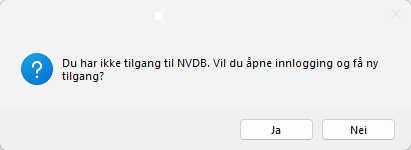
Message for an expired token
- Retrieve the token as described in the section above about the Norwegian Public Roads Administration API catalog.
NVDB authentication
-
Paste the token and click Apply...
-
The NVDB authentication token is now updated, and you receive the following message:

Valid authentication token